The browser pane
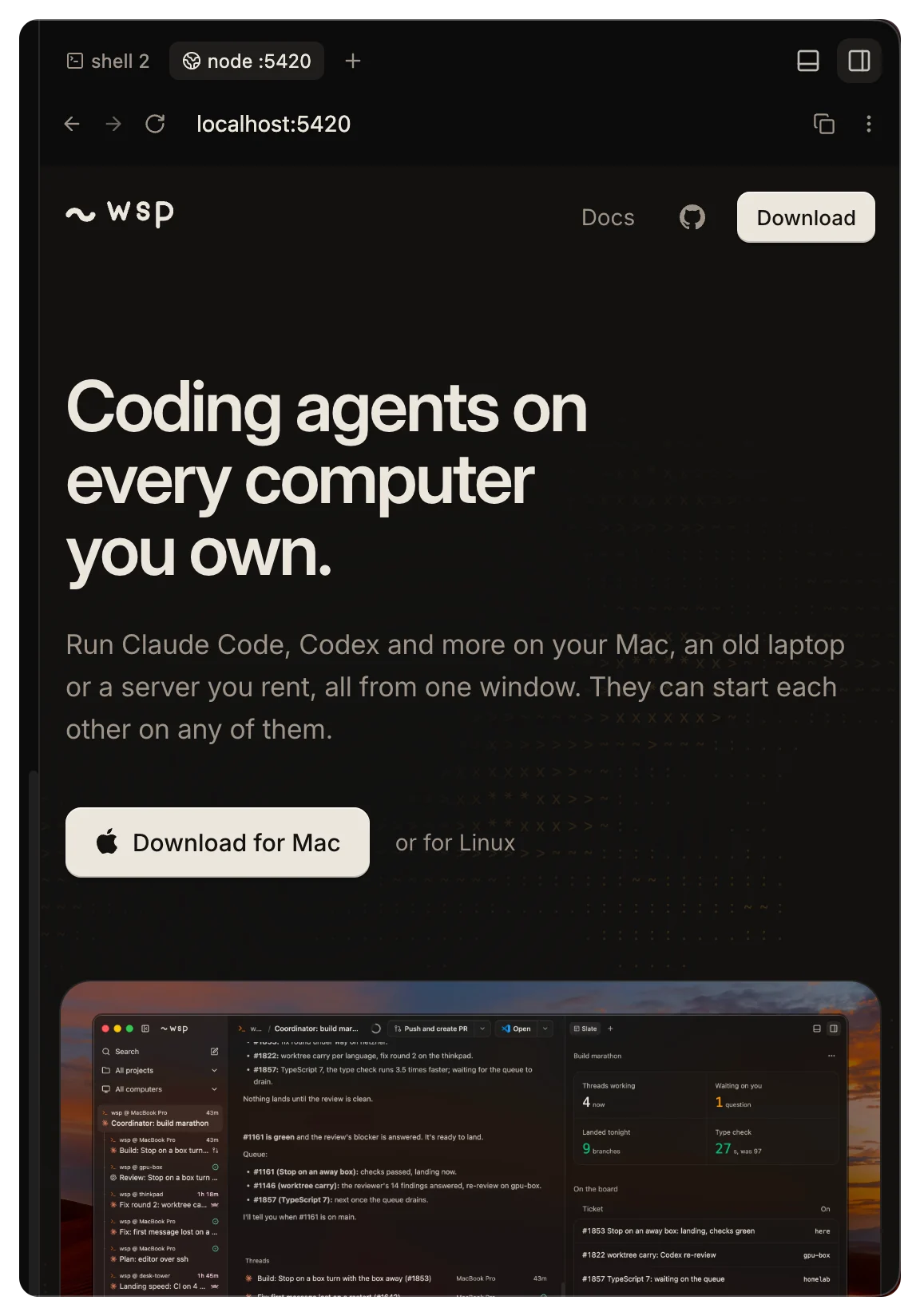
The Browser pane shows a web server that runs on the thread's computer, beside the thread. Use it to look at your dev server while the agent works on it.
To open it, click Add a panel, the + at the top of the right panel, and pick Browser. If the right panel is empty, it has no +. Click the pane in the list the empty panel shows instead. In that menu or that list, B picks it too. You can also press mod+shift+j.
Open a server
When the pane opens, it lists the servers that listen on the thread's computer, under Local servers. It lists the addresses you opened before under Recently used. Click one to open it.
The daemon on that computer looks for listening ports every 5 seconds. On a computer you own, the list holds only the ports of this thread's work. These are the ports of its turns, its terminals, the programs they started and the programs that run in its folder.
To open a port that is not in the list, type it in the address bar. The bar takes 3000, :3000, 3000/about or localhost:3000/about. The pane opens only ports on the thread's computer.
How the pane reaches the port
- For a thread on the computer you sit at, the pane opens
localhostand the port, as your own browser does. - For a thread on a computer you added, wsp forwards the port to
localhoston the computer you sit at. It keeps the port number if it is free, and else picks the next free one. The pane then opens the forwarded port.
A forward with nothing connected to it closes about 2 minutes after the pane stops asking for it. It also closes after an hour with no new connection. Open the address again to forward it again. wsp does not forward a port below 1024, since only root can open one.
While wsp forwards a port, the laptop button, Open on laptop, opens it in your own browser on the computer you sit at.
A link to localhost in a reply opens in a Browser tab too, for a thread on a computer you added.
The controls
The bar has Back, Forward, Refresh, Open in system browser and Copy URL. The More menu adds Hard reload, New tab, and the page zoom.
The pane has no developer tools. To use them, click Open in system browser.
When the page is white
A dev server often refuses a request for a host name it does not know, and the frame then shows a white page. The frame cannot say why. So for a thread that is not on the computer you sit at, the pane asks the host what one fetch of the address answered. If the server refused it, the pane names the fix.
The host name in each fix is the one the pane shows. For a thread on a computer you added, the server sees localhost, which most dev servers allow.
| Server | What the pane says to do |
|---|---|
| Vite | Restart the dev server so that it picks up the allowance that the thread's environment already sets. Or add the host to server.allowedHosts in vite.config. |
| webpack-dev-server | Add the host to devServer.allowedHosts in the webpack config, or start it with --allowed-hosts <host>. Then restart it. |
| Rails | Add config.hosts << "<host>" to config/environments/development.rb and restart the server. |
| Next.js | Add the host to allowedDevOrigins in next.config and restart it. |
The pane tells them apart by the server's answer. Vite says Blocked request, webpack says Invalid Host header, Rails says Blocked hosts, and Next.js says Unauthorized. Any server can answer 403 Unauthorized, so if the fix for Next.js does not apply, read the server's own log.
For any other 403, the pane says that the server refused the host. If your server reads the Host header, allow that host in its config and restart it.