Open in your editor
You can open a thread's folder, or one of its files, in the editor you already use. For a thread on a computer you added, wsp opens the editor over ssh, so the editor works on that computer's files.
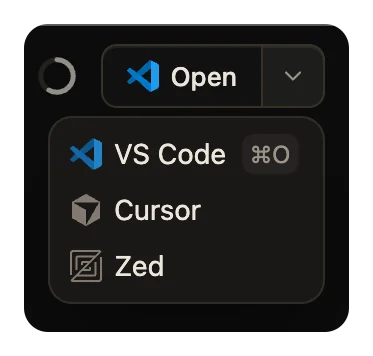
Open a folder or a file
- To open the thread's folder, click Open in the thread's top bar, or press
mod+o. - To pick another editor, click the arrow beside Open, Choose an editor, and pick one. wsp opens the folder in it, and it becomes your default.
- To open a file, click Open in editor on the file's tab in the Files pane. The editor opens the file at its line.
mod is Cmd on a Mac and Ctrl elsewhere.
You can also set the default in Settings > General > Open files in.
The editors
wsp looks for these editors in /Applications and in ~/Applications, and lists the ones it finds:
| Editor | Over ssh |
|---|---|
| VS Code | Yes, with the Remote SSH extension |
| Cursor | Yes, with the Remote SSH extension |
| VS Code Insiders | Yes, with the Remote SSH extension |
| Zed | Yes |
| IntelliJ IDEA | No |
| WebStorm | No |
| PyCharm | No |
| GoLand | No |
| RustRover | No |
| CLion | No |
| PhpStorm | No |
| RubyMine | No |
| Rider | No |
| Finder | No |
Finder shows the file in its folder. It does not open it.
wsp opens editors on a Mac only. On Linux, the list is empty.
wsp runs each editor's own command line. For example, it runs code -g <file>:<line> for VS Code and open -na for a JetBrains IDE. It opens only paths inside the thread's folder.
Open a thread on another computer
For a thread on a computer you added, the menu lists only the editors that work over ssh. The editor connects to an ssh host named wsp- and the thread's workspace name, in lowercase with dashes, for example wsp-acme-lab. wsp carries that connection over its own link to the computer, so you set up no ssh login of your own.
The first time you open such a thread, wsp asks to add one line to ~/.ssh/config. The dialog is Open in your editor over SSH:
- The line covers only hosts named
wsp-*. Nothing else in the file changes. - While your editor is connected, the thread's computer can reach three things through it. These are the ports the editor forwards, the files it asks to open, and your editor's git sign-in.
Click Add to SSH config to go on. To take the line out, turn off Editors over ssh in Settings > General.
VS Code, Cursor and VS Code Insiders need their Remote SSH extension. If it is not installed, wsp says so and prints the command that installs it. Each editor has its own command:
| Editor | Command that installs the extension |
|---|---|
| VS Code | code --install-extension ms-vscode-remote.remote-ssh |
| Cursor | cursor --install-extension anysphere.remote-ssh |
| VS Code Insiders | code-insiders --install-extension ms-vscode-remote.remote-ssh |
Cursor also works with ms-vscode-remote.remote-ssh if it is already installed.
When an editor does not open
| The message | What to do |
|---|---|
| No editor wsp knows is installed on this computer. | Install one of the editors above. |
| Editor is not installed on this computer; pick another editor in Settings. | Pick another editor in Settings > General. |
| These files are on computer, so they open here. | That editor cannot open files over ssh. Pick VS Code, Cursor, VS Code Insiders or Zed. |
| Path is not in this workspace's folder, so it does not open in your editor. | wsp opens only files inside the thread's folder. |