Changes and commits
The Changes pane shows the git changes in the thread's folder, read on the computer the thread runs on. You can read the diff, comment on lines, edit a file, discard a file and commit, without leaving the app.
To open it, click Add a panel, the + at the top of the right panel, and pick Changes. If the right panel is empty, it has no +. Click the pane in the list the empty panel shows instead. In that menu or that list, D picks it too. You can also click Open diff on a turn's list of changed files.
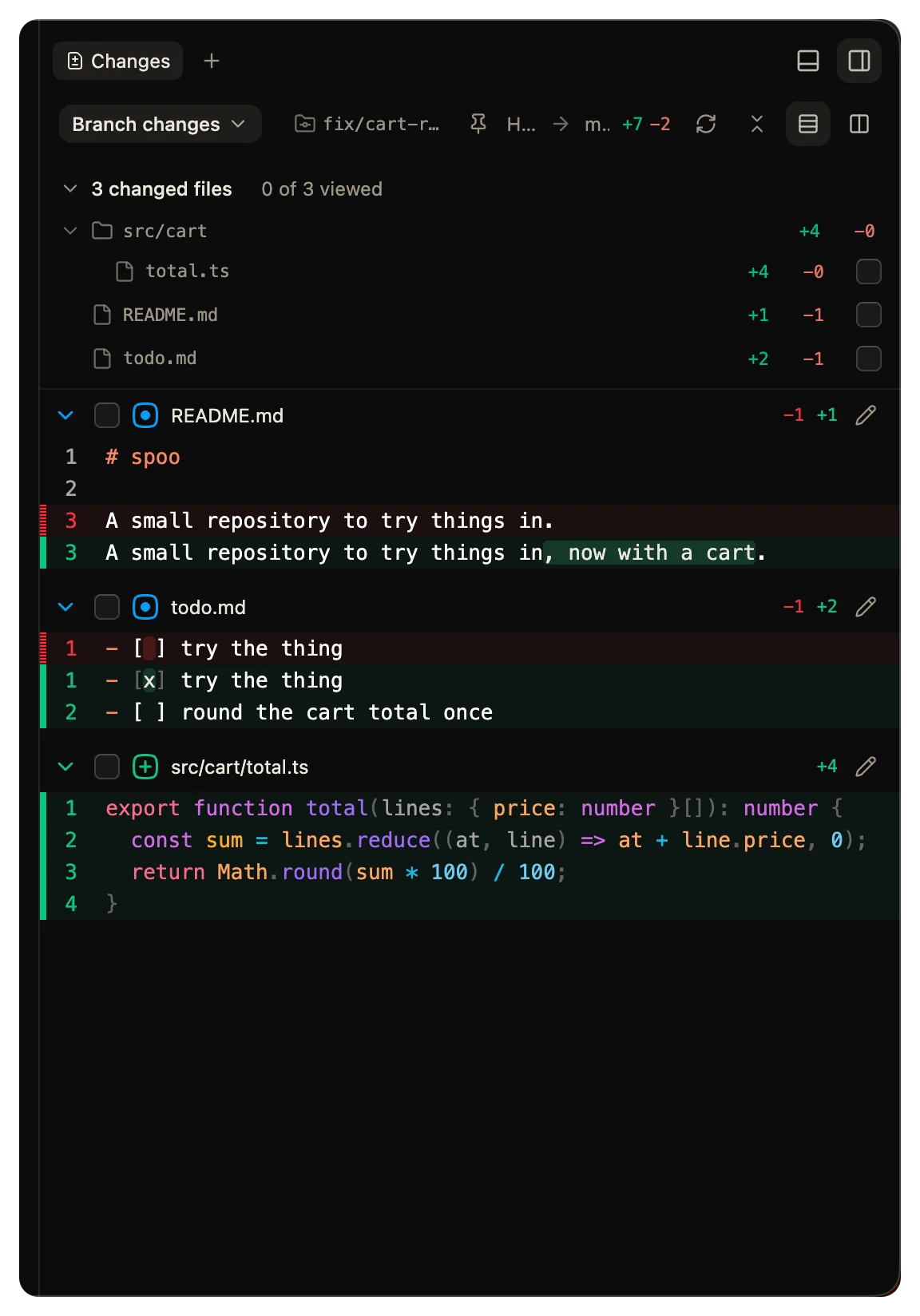
Pick what to compare
The scope menu at the top of the pane has four choices:
| Scope | What it shows |
|---|---|
| Branch changes | Everything on the branch since it left the default branch, committed or not. This is the default. |
| Uncommitted | Every change since the last commit. |
| Working tree | The changes that are not staged. |
| Staged | The changes that are staged. |
The default branch is origin/HEAD, else main, else master. In Branch changes, the header shows the two ends, for example HEAD → main. Branch changes and Uncommitted also list new files that git does not track yet.
The pane keeps your pick of scope for each thread's folder.
Read the diff
At the top is a tree of the changed files, with a count such as 3 of 7 viewed. It folds, and past a set height it scrolls. The diff is under it.
- Stacked view shows each file as one column. Split view shows the old and the new side by side.
- Tick a file as viewed to fold it. The tick stays until the file changes again.
- Expand all files and Collapse all files open or fold every file.
- Refresh changes reads the folder again.
The pane follows the folder the agent works in. To keep it on one folder, click the pin, Stay in this folder.
The daemon sends at most 2 MB of patches. Past that, the pane lists the other files without their patches.
Comment on lines
Select a line, or several lines, to open a comment box under them. Type the comment. When you are done, click Send to thread at the top of the pane. Your comments go into the composer as a draft, so you can add to them before you send.
Edit a file
Click the edit button on a file to change it in place, then click save. wsp writes the whole file on the thread's computer. Edit is not offered in the Staged scope, or for a deleted file, a binary file or a file whose patch was cut.
Discard a file
To throw away the changes to one file, click its trash icon. The dialog asks Discard changes to file? The file goes back to how its last commit has it. If no commit has the file, discarding deletes it. A discard cannot be undone.
Discard is not offered in the Branch changes scope, since a commit holds those changes. There is no Discard all and no button to stage a file.
Commit
- Pick the Uncommitted scope.
- Click Commit. Every changed file is ticked.
- Untick the files you want to leave out.
- Read the message. The thread's agent drafts it from the diff, and the box says Drafting a message meanwhile. Change it if you want.
- Click Commit.
The commit runs the folder's git hooks, as git does. If a hook says no, the commit stops with the hook's last line. While the agent still works, the box says The agent is still working, so you know the files can still change.
A commit stays on the computer. Nothing goes to a remote until you push.
Push and open a pull request
The git button in the thread's top bar does the next step for the folder. Its label changes with the state: Commit, Commit and push, Push, Commit, push and PR, Push and create PR, Create PR or View PR. Its menu, More git actions, has the rest.
Commit and push and Commit, push and PR commit every changed file, with the message the agent drafts. You do not see the message or the list of files first. To pick the files or read the message, commit from the Changes pane first, then push. wsp opens the pull request with the GitHub command line, gh.
The pull request pane shows the pull request after that.
A turn's changed files
Under each turn, the thread lists the files that the turn changed. Click Open diff to open them in the Changes pane, scoped to that turn.
Several threads can work in one folder. If other threads worked there too, the list shows one of two forms:
- If the agent named the files it edited, the list shows those files. A second list under it, Also changed in this folder, holds the other files that changed.
- If the agent named none, the list says N changed files in this folder and holds every file that changed in the folder.
From the command line
| Command | What it does |
|---|---|
wsp commit <thread> [--message "<message>"] [--file <path>]... | Commits the changed files, or only the ones that --file names. Without --message, the agent drafts the message. |
wsp discard <thread> <path> [--yes] | Puts one file back as its last commit has it. It asks first, unless you pass --yes. |
wsp update <thread> | Merges the newest commits of the base branch from the remote into the branch, with a merge commit. |
wsp update never rewrites a branch, so a branch you already pushed stays safe to push again. If the folder has changes no commit holds, it stops and names the files. If the merge conflicts, it takes the merge back at once and names the files. wsp fix then hands those files to the agent. None of the three commands pushes.
The command line reference has every flag: commit, discard and update.