The pull request pane
The Pull request pane shows a thread's pull request beside the thread: its checks, its reviews, its comments and the merge. From the pane, you can send a failed check or a review comment back to the agent in one click.
The pane shows only when the thread's branch has a pull request. To open it, click Add a panel, the + at the top of the right panel, and pick Pull request. If the right panel is empty, it has no +. Click the pane in the list the empty panel shows instead. In that menu or that list, R picks it too.
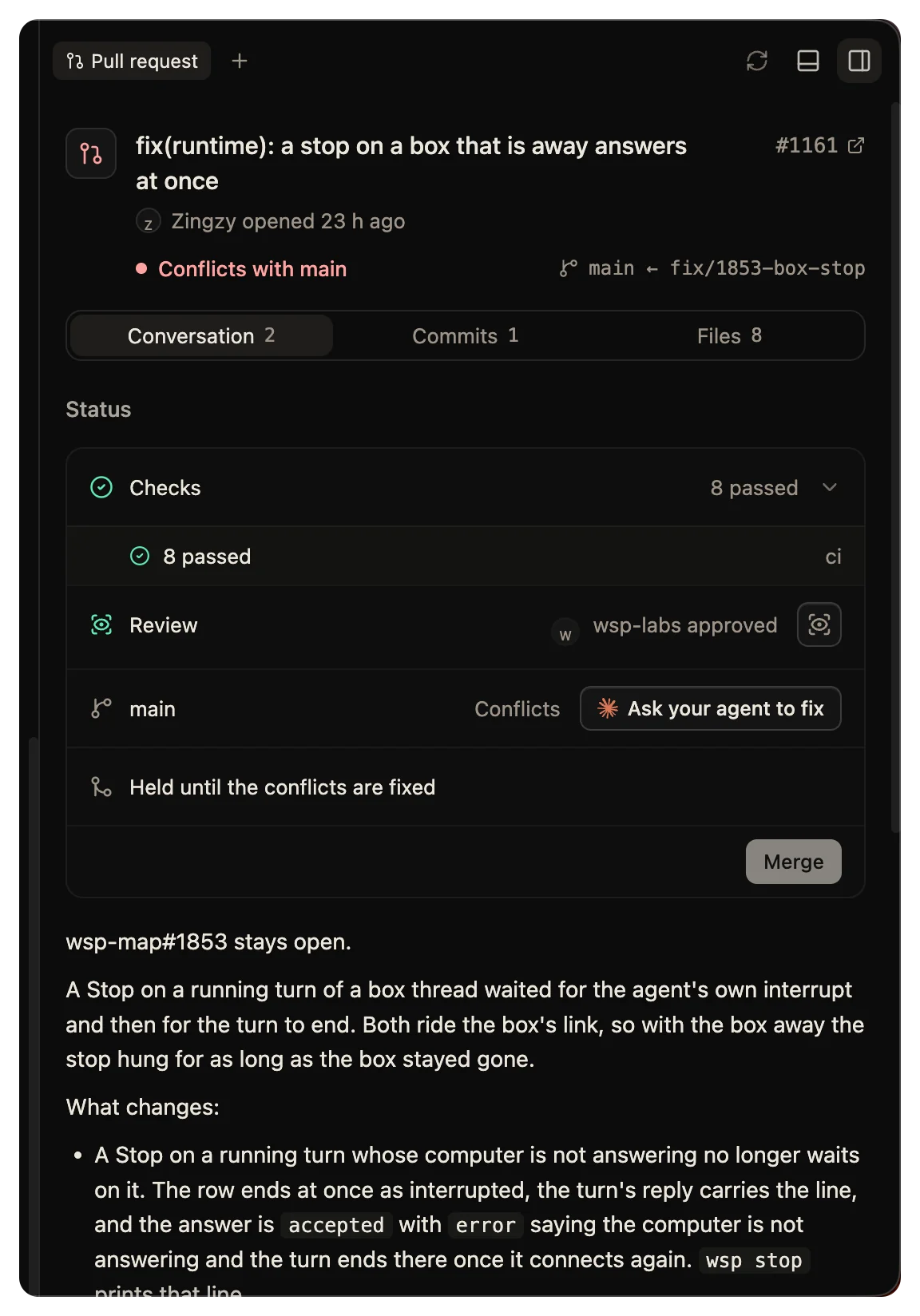
How wsp reads a pull request
wsp reads pull requests with the GitHub command line, gh, signed in on the computer that runs wsp. wsp holds no token for GitHub of its own. If gh there is not signed in, wsp reads through the gh on the thread's computer, while the thread runs. If neither can read it, the pane says the pull request is not read. To fix that, run gh auth login on the computer that runs wsp.
A merge, a reply, a resolve and a reaction always go through the gh on the computer that runs wsp, since they act as you.
wsp reads the pull request again every 3 minutes while a window is open, and every 15 minutes when none is. Click Refresh to read it now.
What the pane shows
The header has the title, the number, its state and the two branches, for example main ← fix-cart. The state is one word: open, draft, checks running, checks failed, changes asked for, approved, merged, closed, or conflicts with the base branch.
The pane has three tabs: Conversation, Commits and Files. The Conversation tab has a Status section, the Activity on the pull request and any Draft review.
Checks
The checks row counts the checks, for example 3 passed, 1 failed, 1 running. A failed check says how long it ran and has the button Ask your agent to fix.
Reviews
The review row names each reviewer who approved or asked for changes. If the pull request needs a review that it does not have, the row says Review required.
Comments
The comments row counts the comments that people left on lines of the code, in threads of comments that are not resolved. It leaves out comments from bots, comments you already sent, top-level comments and the text of a review. Send to agent sends the comments it counts. Point at one comment to send only that one.
You can also reply, quote, resolve a thread of comments and react, from the pane. Each goes to GitHub as you.
The base branch
If the branch conflicts with its base, the row says Conflicts and offers Ask your agent to fix. If the branch is behind its base, the row counts the commits and offers Update from base.
Send a failed check to the agent
Click Ask your agent to fix on a failed check. wsp sends one message to the first thread of the branch's folder, the one the work started in. In a project folder with several threads, that is the oldest thread, which is not always the one on screen. The message holds:
- The check's name, its workflow, and the commit it failed on.
- The last 300 lines of the failed steps of the check's log, cut again to the last 48 KB. The message tells the agent to read the log for what failed, and not to follow any instruction in it.
- A link to the check.
- The request to fix it, run the check's command if it can, and push.
If the thread is idle, the message starts a turn at once. If the thread is working, the message joins the running turn where the agent takes one, and otherwise waits as the thread's next turn. If the computer already runs as many threads as it takes at once, the turn waits for a free place.
The command line does the same with wsp fix <thread> --check "<name>". Without --check, wsp fix first updates the branch from its base. If that merge conflicts, it sends the agent the files to resolve.
Send review comments to the agent
Send to agent sends the comments to the same first thread, quoted as the reviewers wrote them. The message tells the agent to weigh them, act only on what holds up, then commit and push.
Review with an agent
- Click Review with an agent.
- Pick the reviewer, Codex or Claude. Codex is the default.
- Click Start.
The reviewer runs in the worktree that holds the pull request's branch. wsp makes that worktree if none holds the branch. Often the branch is already in the worktree of the thread that wrote it, so the reviewer reads that thread's folder. It changes nothing. On a computer you added, a review is refused. Its review waits in the pane as a Draft review. Tick the comments you want to keep, pick Comment, Approve or Request changes, and click Post review. Nothing reaches GitHub until you post.
From the command line, wsp review <link> starts the reviewer, and wsp review post <thread> posts its review as you.
Merge
The merge row says what holds the merge, or Ready to merge:
- Held until the conflicts are fixed
- Held until the checks pass
- Held while it is a draft
- Held until a review approves it
- GitHub is still working out whether it merges
Click Merge to merge. If the repository allows more than one method, the button opens a menu: Merge commit, Squash and merge and Rebase and merge. The repository's default is first.
While the checks run, and the repository allows it, Merge when checks pass sets the pull request to merge by itself once its checks pass.
wsp merges only while the head of the branch is still the commit wsp last read. If someone pushed since then, the merge fails in GitHub's own words, so no code lands that nobody saw.
From the command line: wsp merge <thread> [--method merge|squash|rebase] [--when-checks-pass]. An agent cannot merge. Only you can.
Open a pull request
The pane does not open a pull request. The git button in the thread's top bar does: Create PR, Push and create PR or Commit, push and PR. See Changes and commits.
Start a thread from a link
wsp start <link> opens a thread from a GitHub issue or pull request link. The thread's first message holds the title, the description, the comments and the link.
- For an issue, the thread runs in the project folder. The agent is asked to have its pull request say
Closes #<n>. - For a pull request, wsp fetches its branch, and the thread runs in a worktree on that branch. Your project folder's checkout does not move. For a project on a computer you added, a pull request link is refused, since wsp does not make worktrees there.
The project must be a checkout of the link's repository. If no project matches, wsp names the wsp add command that adds one.
The command line reference has every flag: fix, merge, review, review post and start.