Needs you: prompts and questions
A thread needs you when its agent stops to ask you something. There are two kinds of stop:
- A permission prompt. The agent wants to run a command or edit a file, and its access mode asks first.
- A question. The agent asks you to pick an answer or to type one.
The turn waits until you answer. Its turn line says "Waiting for you" and a timer.
When a thread asks for permission
Every thread starts in its agent's mode that asks nobody. So a new thread never stops on a permission prompt until you pick a mode that asks.
The access picker under the composer lists the agent's own modes, with the agent's own names. The default is marked:
| Agent | Modes in the picker | Default |
|---|---|---|
| Claude Code | Default, Accept edits, Bypass, Auto, Manual, Don't ask | Bypass |
| Codex | Read only, Workspace write, Full access | Full access |
| OpenCode | Auto | Auto |
| Cursor | Default, Force | Force |
For Claude Code, Default asks in the chat about each action that needs permission, and Manual asks before every action.
The command line, Settings > Agents and a project's settings use four words of wsp's own instead. wsp turns each word into the agent's mode. Not every agent takes every word:
| Word | What the agent does | Agents that take it |
|---|---|---|
ask | Asks about each action that needs permission. | Claude Code, Codex |
auto-edit | Edits files without asking, and asks about the rest. | Claude Code |
full | Runs every action without asking. | Claude Code, Codex, OpenCode, Cursor |
plan | Reads and proposes. It changes nothing. | Codex, Cursor |
Claude Code has no plan. An agent refuses a word it does not take and names the words it takes. For example, wsp run lab --access ask "Fix the login test." starts a Claude Code thread in Default, which asks in the chat about each action that needs permission.
Answer a prompt
The prompt takes the place of the composer. It shows the agent, what it wants to do, and the command, the file or the edit itself.
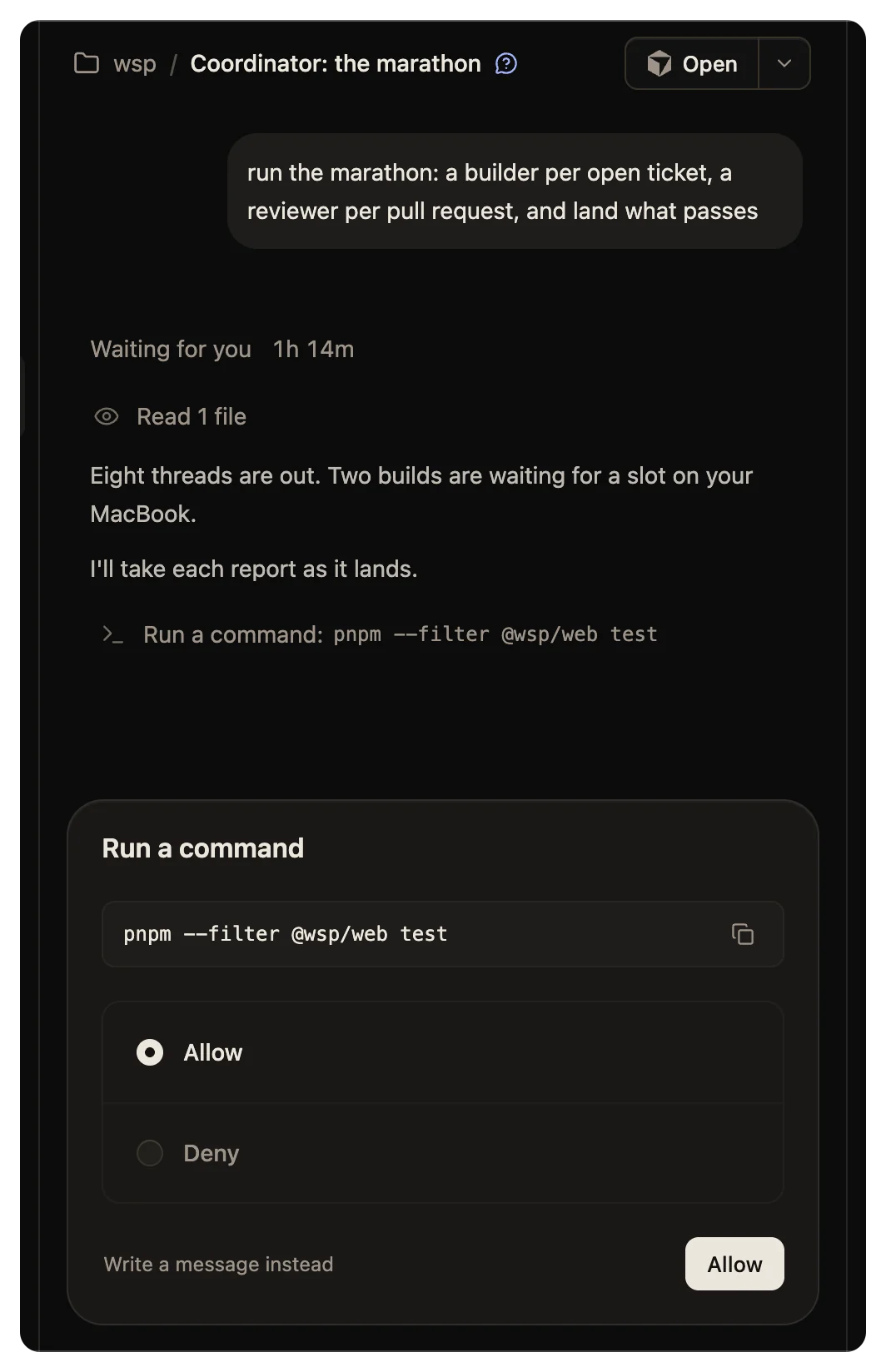
- Allow lets the call run.
- Deny refuses it. A field opens, "What to do instead", where you tell the agent what to do next.
- Some agents offer more, such as Allow, then a mode for the rest of the turn.
You can also answer from the keyboard. A number picks an option, the arrows move between options, and Enter answers. Esc folds the prompt away so you can read the thread. Write a message instead also folds it.
When you answer, the prompt becomes one line in the transcript: "Allowed", "Denied", or "Cancelled with the turn" if the turn ended first.
A prompt from a sub-thread or from a subagent shows in the transcript with its own buttons.
Answer a question
A question uses the same place as a prompt. Each question is a list of choices. The last choice, Other, opens a field where you type your own answer. A form with several questions shows "1 of 3" and has Back, Next and Answer.
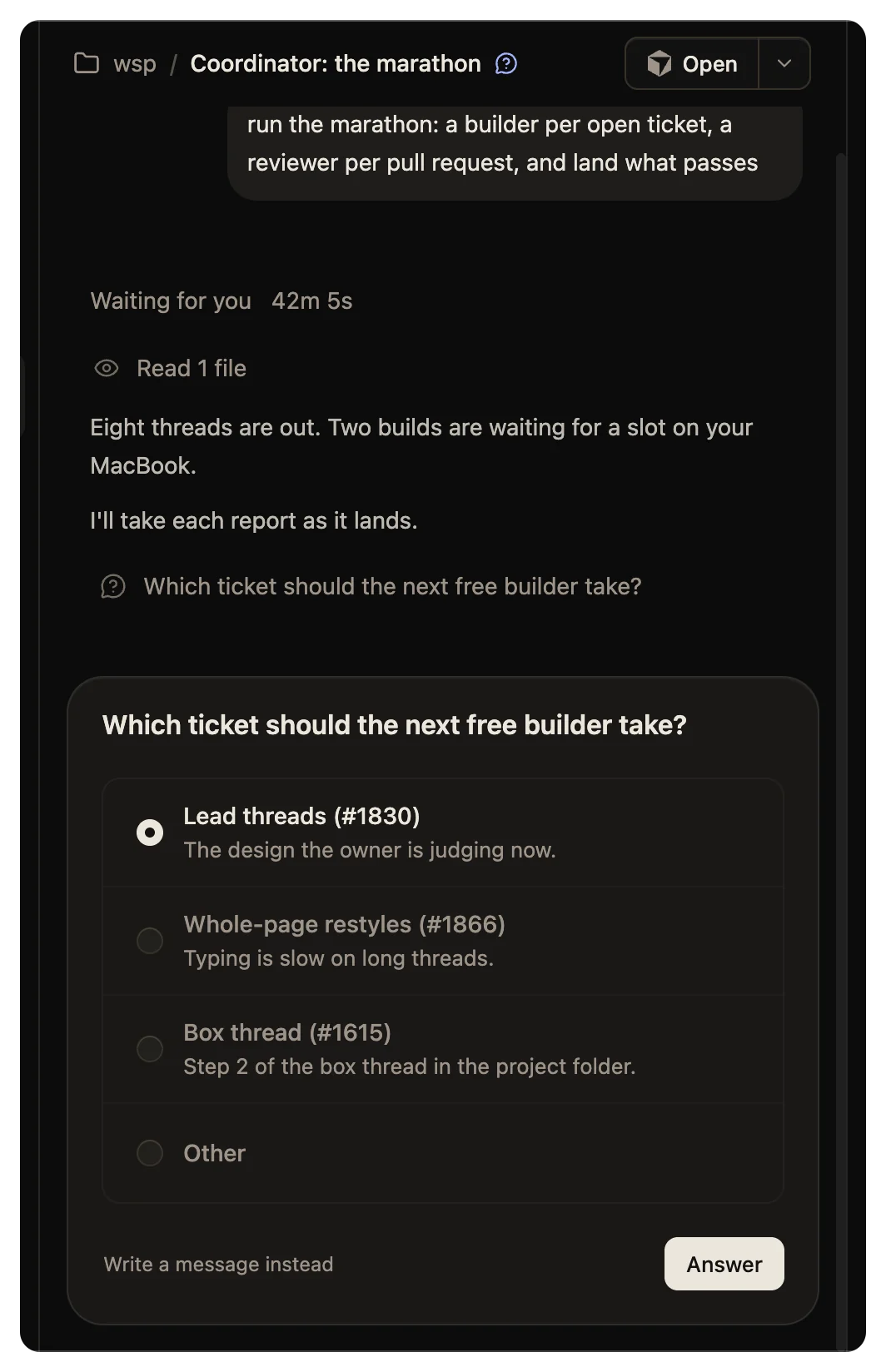
If you fold a question away, a row above the composer says "Waiting for you" and the question. Click the row to open the question again.
The Needs you inbox
Every thread that needs you is listed under Needs you in the sidebar. The sidebar has three parts: Pinned, then Needs you, then one list of every other live tree. The inbox goes tree by tree, pinned trees first, and each tree from its top down.
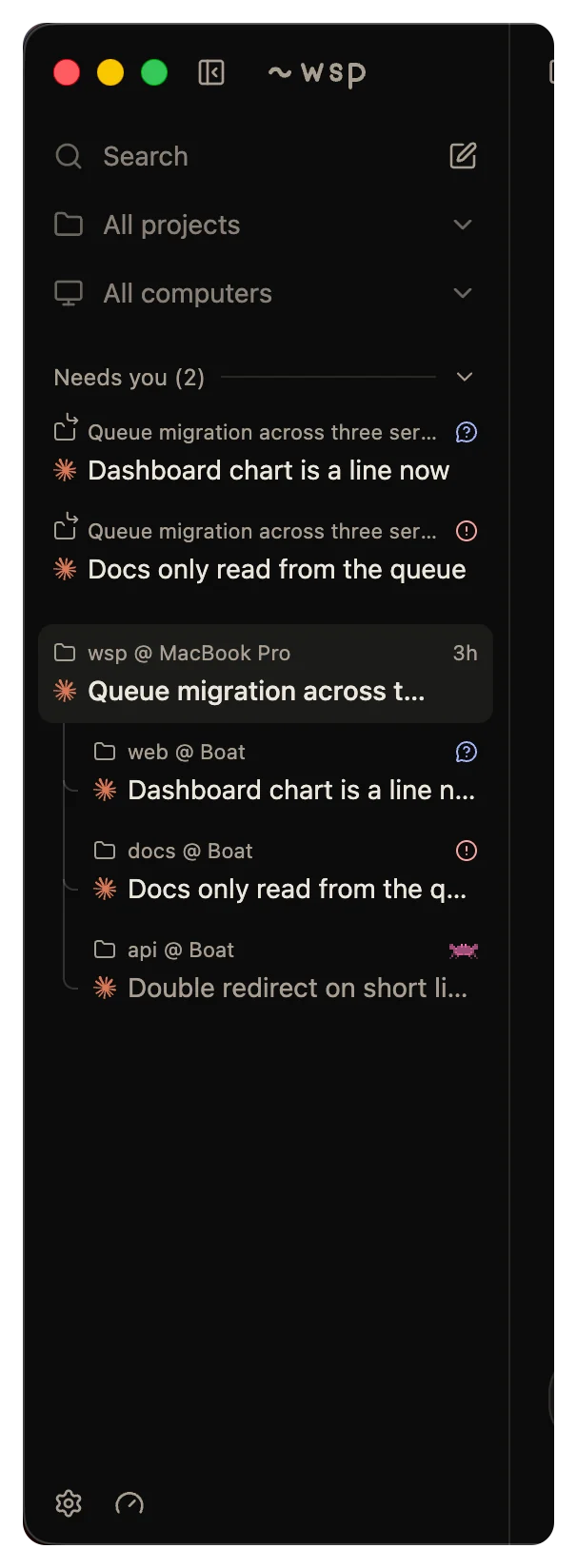
A thread is listed there when:
- It asks you something, at any depth of a tree.
- It failed and does not resume by itself.
A sub-thread in the inbox wears a small ↳ arrow on its project mark. Its first row shows the title of the thread that started it. That thread is not always the lead. The tile's hover card names the whole path, such as "Started by Release / Review". Subagents and settled threads are never listed.
A thread leaves the inbox when you answer it, or when you settle the failed thread.
Press ⌘ ⌥ U (Ctrl Alt U off a Mac) to go to the next thread that needs you. In an open thread that waits on you, the top bar shows a question mark. Its tooltip is the question.
Answer from the command line
Run wsp threads to see which threads need you. Then answer a permission prompt:
wsp thread allow 1a2b3c4d
wsp thread deny 1a2b3c4d --reason "Run the tests in the api folder only."
--reason is what the agent does instead, in your words. If the thread waits on no prompt, wsp says so and changes nothing.
A wsp run that you watch in a terminal asks you there. Type y to run the call or n to refuse it.
On a Mac: the menu bar and notifications
When any thread waits on you, the wsp icon in the menu bar becomes a question mark. The menu's first line counts the threads, such as "2 working, 1 waiting on you". Each thread has its own menu with Open, Allow, Deny and Stop. A failed thread has Open only. The Dock icon's badge counts the threads that need you.
wsp also sends a notification, titled "wsp needs you", when a thread asks something and the wsp window is not in front. Click it to open the thread. In the app, a notice shows when the thread is not on screen, and the window title starts with a dot.
To change the notification, open Settings > General > When a thread needs you. The choices are Off, Notify, Sound and Notify and sound. The default is Notify and sound. The setting covers a question, a permission prompt and a sign-in.
See The desktop app on a Mac for the rest of the menu bar.