Agents and sign-ins
An agent is the coding agent a thread runs, such as Claude Code or Codex. wsp runs the agent's own command line on the computer where the thread runs. The agent uses its own sign-in, its own config and its own sessions there.
wsp knows the agents in the table below. Four of them run threads in wsp today. The others are in the catalog. The Agents pane lists them and wsp knows how they sign in, but wsp cannot run a thread on them yet.
| Agent | Command | Runs threads | How it signs in | Key in the environment |
|---|---|---|---|---|
| Claude Code | claude | Yes | With a token you make, from claude setup-token | CLAUDE_CODE_OAUTH_TOKEN or ANTHROPIC_API_KEY |
| Codex | codex | Yes | On a page, with a device code, from codex login | OPENAI_API_KEY |
| Gemini CLI | gemini | No | With a code you paste back, from gemini --skip-trust | GEMINI_API_KEY |
| OpenCode | opencode | Yes | In its own terminal, where it asks you to pick, from opencode auth login | None |
| Pi | pi | No | In its own terminal, where it asks you to pick, from pi | None |
| Hermes Agent | hermes | No | In its own terminal, where it asks you to pick, from hermes auth | None |
| Crush | crush | No | Needs no sign-in | None |
| Qwen Code | qwen | No | Needs no sign-in | None |
| Goose | goose | No | Needs no sign-in | None |
| Amp | amp | No | Needs no sign-in | None |
| Cursor | cursor-agent | Yes | With a key, from cursor-agent login | CURSOR_API_KEY |
A new thread runs Claude Code unless you pick another agent. To change that default, open Settings > Agents and set Default agent under New threads, or run wsp agents default <agent>. A project can name its own agent with wsp projects set <project> --agent <agent>.
The Agents pane
With the right panel open, press A, or pick Agents in the panel's launcher. The pane has three tabs: Agents, Tool servers and Skills.
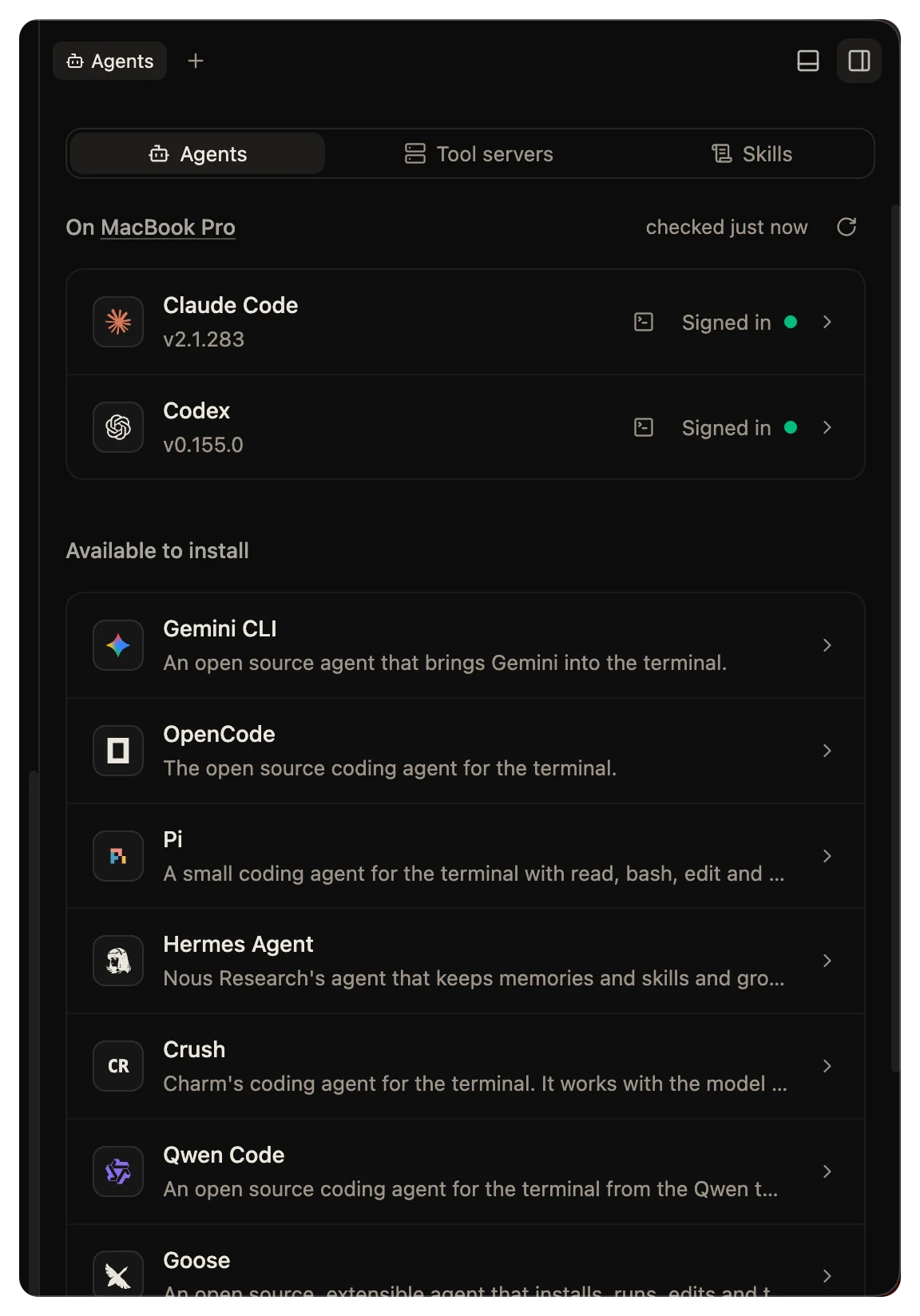
The Agents tab lists the agents on the thread's computer, each with its version and one of these states:
| State | Meaning |
|---|---|
| Signed in | The agent's own login works. |
| Your key | The agent reads a key you gave wsp. |
| Needs sign-in | The agent has no login and no key. |
| Not checked | wsp has not asked the agent yet. |
Under Available to install are the catalog's agents that the computer does not have. The pane does not install, update or remove agents yet. To put an agent on a computer you added, use Add a computer. On your Mac, install the agent the way its maker says.
The buttons on an installed agent depend on its state:
- Sign in shows while the agent is not signed in.
- Open in terminal shows once it is signed in.
- Add the wsp tools shows while the agent does not have the wsp tools.
Add the wsp tools writes the wsp MCP server and the wsp skill into that agent's config, so the agent can drive wsp. It works only on the computer the app runs on. It also works only for an agent whose MCP config wsp knows: Claude Code, Codex, Gemini CLI and OpenCode. For any other agent, the button is held, and hovering it says the agent "has no MCP config wsp knows". See Give your agent the wsp tools.
Settings > Agents shows the same lists for any of your computers. Each agent there has its own page with its default model, effort and access, its program, its config folder, its launch arguments and its environment.
Sign in
Each agent signs in its own way, as the table says. wsp starts the agent's own login and shows it to you. It never asks for your password.
- On the computer the app runs on, a thread uses the agent you installed, with the login you already have. If the agent works in your terminal, it works in wsp.
- In the Agents pane, click Sign in beside the agent. For a token or a key, wsp asks you to paste it.
- In a terminal, run
wsp agents signin <agent>. - On a computer you added, run
wsp add <computer> --sign-in <agent>, or click Sign in on that computer's row in Settings > Computers.
The two commands run an agent's own login, so they work only for an agent that has one. Claude Code has no login for wsp to run, so wsp refuses both commands for it. Claude Code signs in with a token in wsp's vault instead, as the next section says. Crush, Qwen Code, Goose and Amp need no sign-in.
A sign-in belongs to a computer, not to a thread. Every thread on that computer uses it.
Keep a key in wsp's vault
To give wsp a token or a key instead of a login, run this at the host's own terminal:
wsp agents key claude
wsp asks for the key where nothing echoes it. For Claude Code, it asks you to run claude setup-token in another terminal and paste the token it prints. Claude Code takes only that token. wsp refuses an Anthropic API key there as "not a Claude Code token". Codex, Gemini CLI and Cursor take their API key, the variable in the table above. OpenCode keeps no key in wsp's vault. The key goes into the .env file beside wsp's state, ~/.wsp/.env by default, readable by you alone. Every turn reads it from there, as the variable in the table above.
From the command line
| Command | What it does |
|---|---|
wsp agents | Lists each agent with its version, the newest version, its sign-in, and whether it has the wsp tools. |
wsp agents default <agent> | Sets the agent a new thread runs when neither the command nor its project names one. |
wsp agents set <agent> | Sets an agent's default model, effort and access, and which models the pickers show, on every computer. |
wsp agents setup <agent> | Sets how the agent runs on one computer: its program, its config folder, its arguments and its environment. |
wsp agents signin <agent> | Runs the agent's own login in this terminal. Refused for an agent with no login, such as Claude Code. |
wsp agents key <agent> | Puts a token or a key into this host's vault. For Claude Code, only a claude setup-token token. |
wsp agents addtools <agent> | Writes the wsp MCP server and skill into the agent's config on this computer. |
Each command has its page under Command line, with every flag.