The switcher and the palette
Three ways move you between threads with the keyboard. The switcher steps through the threads you opened last. The palette searches threads and actions. The jump keys open a row of the palette's Tasks group by its number.
In the chords below, mod is Cmd on a Mac and Ctrl elsewhere. You can change every chord in Settings > Keybindings. The keyboard shortcuts page lists them all.
The switcher
Hold Ctrl and press Tab to open the switcher. Each card shows a thread: a preview of its page, its title, its agent, its computer and its state.

- Hold
Ctrland pressTab. The next card is picked. - Press
Tabagain to move on, orShift+Tabto move back. - Let go of
Ctrlto open the picked thread.
To close the switcher without a move, press Esc.
A quick Ctrl+Tab takes you back to the thread you had open before. That makes it easy to go back and forth between two threads.
The switcher lists up to six threads. The open thread is first, then the others by when you last opened them, newest first. Threads you never opened come last, in sidebar order. It leaves out settled threads.
mod+alt+left and mod+alt+right open the same switcher. mod+alt+up and mod+alt+down open it over the threads of the open project only.
When the right panel has more than one tab and holds focus, Ctrl+Tab steps through the panel's tabs instead. A focused terminal keeps Ctrl+Tab for itself.
The palette
Press mod+k or mod+shift+p, or click Search at the top of the sidebar, to open the palette.
Before you type, the palette shows three groups:
- Actions: things to do, such as New thread, Add a project, Settings and Report a bug, and the actions of the open project.
- Tasks: one row for each project folder and each worktree that has a thread. Each row shows its jump key.
- Recent threads: the 12 threads started last.
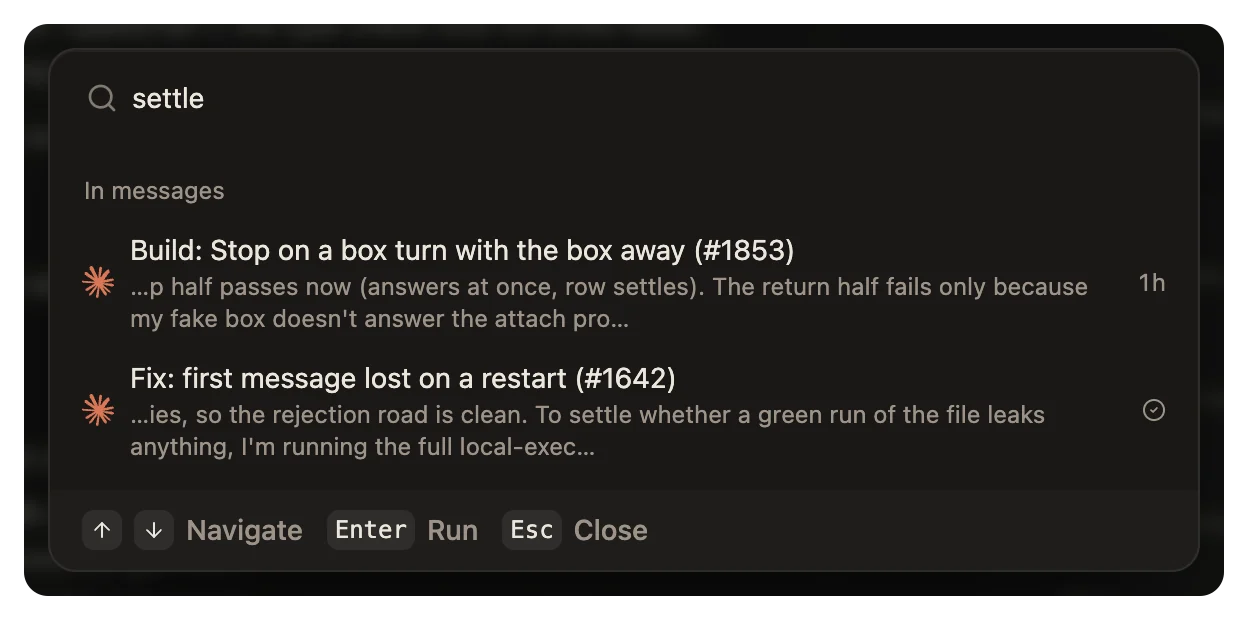
When you type, it searches the actions, the Tasks rows, the titles of your threads, and the words in their messages. A match in a message shows under In messages, with the words around it.
To search the actions only, start with >.
An action that cannot run now shows grey, with the reason in place of its description.
The palette does not search files. To find a file, press mod+p. See Files.
Jump to a row
mod+1 to mod+9 open the rows of the palette's Tasks group by their number. mod+1 is the first row. The rows are in the order in which wsp made them, oldest first, and the order does not change while you work. A project folder or a worktree with no thread has no row, and each worktree that has a thread has a row of its own. If there is no row at that number, nothing happens.
The sidebar shows threads, not these rows, so the numbers do not match the sidebar. Open the palette to see which row has which number.
Go to the next thread that needs you
Press mod+alt+u to open the next thread that waits for you. A thread waits for you when it asks a question or a permission. It also waits for you when it finished or failed, and no window has shown that yet. It goes down the sidebar from the open thread and starts again at the top. If no thread waits for you, nothing happens.
In a browser tab
A browser keeps some chords for itself: Ctrl+Tab, mod with a number, mod+t, and on a Mac Cmd+Option with the arrows. In a browser tab, use the palette or the sidebar instead.