A box behind a firewall
Your computer cannot reach some computers over ssh. Examples are a computer at the office behind its company's firewall, or a computer at a friend's home behind their router. Such a computer can still dial out. This guide joins it to your host from the box itself, with wsp join. When the box cannot reach your computer either, your host gets an address through the relay.
Before you start
The box must have:
- Linux on
x86_64oraarch64, with systemd, cgroup v2 with thememoryandcpucontrollers, and the overlay filesystem. - Node 22 or newer, and npm.
- A root shell.
wsp joininstalls the daemon as a system service. - A way out to the internet over HTTPS, or a way to your computer on a shared network.
You also need a terminal on the box, at the box itself or through any remote screen that you already use.
Step 1: Give your host an address that the box can reach
If the box and your computer are on the same network, skip this step. The box dials your computer's address on that network.
Otherwise, link your host to the relay. Run this on the computer that runs your host:
wsp host link https://relay.usewsp.com
It prints a code and a page:
code        K7QXM2PD
open        https://relay.usewsp.com/link/verify
type        K7QXM2PD on that page
Open that page and sign in to approve <name>. ...
Open the page, sign in with GitHub, type the code exactly as printed and approve the computer. The code has 8 characters and no dash. The host asks the relay for a tunnel each time it starts, so restart it:
wsp restart
wsp status then shows a public row with your host's address, for example https://h1a2b3c4d5e6f7a8b.usewsp.com. The name is h and 16 hex characters.
Step 2: Make a join line on your computer
Run wsp add with no argument on your computer:
wsp add
It prints the line to type on the box, once for each address that your host answers on. When the host is linked, it adds the line for the relay's address:
wsp add: a computer you own joins by dialing this host. On that computer, with wsp installed:
  wsp join http://192.168.1.12:4420 --code <code>
  wsp join https://h1a2b3c4d5e6f7a8b.usewsp.com --code <code>      (when the host is linked to your relay)
The code is spent by the first join and stops working in 10m. ...
The code is the join code and the fingerprint of your host's key, in one word. It works once, for 10 minutes. Do not post it anywhere. The join code and the pairing code for a device share one store. So anyone who has the code in that time can join a computer to your host, or pair a device with it.
Step 3: Join from the box
On the box, open a root shell, install wsp, then run the join line:
sudo -i
npm i -g @wsp-labs/wsp
wsp join https://h1a2b3c4d5e6f7a8b.usewsp.com --code <code> --name office
--name is the name that the box has in your app. Without it, the box uses its host name in lower case.
The join dials each address in turn. It checks that the host proves the key that the code names, and it stops if the key is another one. When it is done, it prints:
office joined the wsp at https://h1a2b3c4d5e6f7a8b.usewsp.com; it dials that host on its own from now on.
systemd unit wsp-place-<tag>.service is loaded; it dials again at every start
log         /root/.wsp/place.log
wsp leave takes this computer back out.
The box keeps the addresses on its join line for good. The join writes them into the box's record once, and the daemon dials only those. A new link gives your host a new name on the relay. So while a box last reached your host through the relay's address, wsp host unlink refuses and names that box. To keep a second way in, give the join line every address that the box can reach, for example wsp join http://192.168.1.12:4420 https://h1a2b3c4d5e6f7a8b.usewsp.com --code <code>. If the box loses your host, join it again in this order:
- On your computer, run
wsp remove office. A new join makes a new record, and your host keeps the old one until you remove it. Two records with one name make every command that namesofficerefuse. - On the box, run
wsp leave. - On your computer, run
wsp addfor a new join line. The old code is spent. - On the box, run the new join line, with every address that the box can reach.
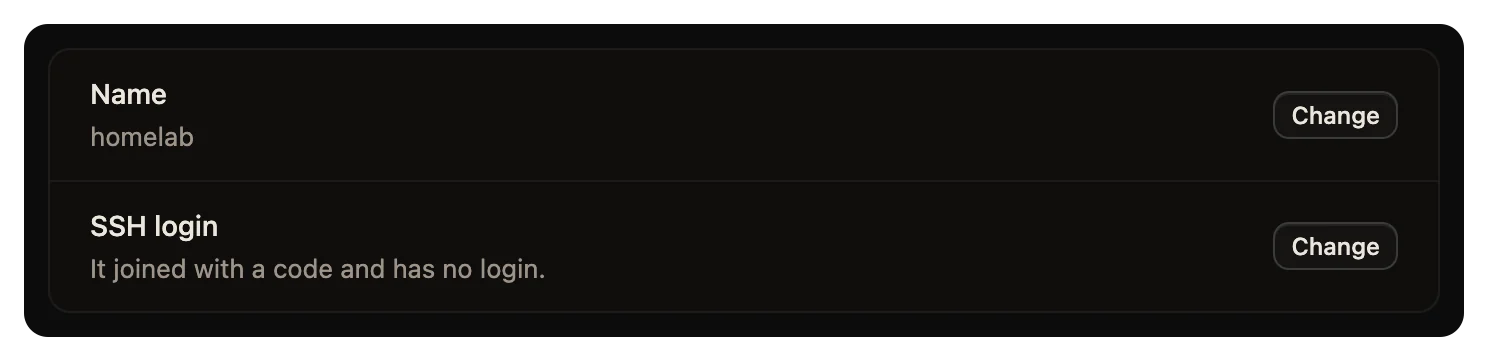
The box now shows in Settings > Computers on your computer, beside the computers that you added over ssh.
Step 4: Set it up and start a thread
The join installs only the daemon. To give the box its tools and agents, open it in Settings > Computers on your computer and choose what goes on it. If you saved a recipe from another computer with wsp recipes save <name> --from <computer>, you can run this instead:
wsp add office --resume --recipe <name>
Then add a project on the box and start a thread, as on any computer:
wsp add https://github.com/acme/api --on office
wsp run api "Read the README and run the tests."
What the relay sees
The box needs no relay account and no open port. It opens a connection out to your host's address, and the relay's Cloudflare tunnel carries it to your host. The box and the host check each other's keys. They seal every frame after that key exchange with X25519, HKDF and AES-256-GCM. The first frame each way travels in the clear, with the host's name, the box's id and the public keys. The join code and the box's report travel inside that seal. So Cloudflare and the relay's operator see only ciphertext of the box's link.
The app's own connection through the relay is another case. A Cloudflare tunnel ends TLS at Cloudflare. So when you open your host through its relay address, Cloudflare can read that connection, with the device token in it. The relay's operator holds the Cloudflare account that the tunnel lives on, and can point your host's name somewhere else.
Only one network avoids both. Put the box and your computer on one network, and open your host at its address there. Your own relay removes the third-party operator only. Its tunnels still run through Cloudflare, so TLS still ends at Cloudflare. What leaves your computer lists what the relay stores.
Take it back out
On the box, in a root shell, run:
wsp leave
It asks first. It stops if work on the box is on no remote, unless you add --force. Then run wsp remove office on your computer, because your host lists the box until you remove it there.
To take your host off the relay, run wsp host unlink on your computer. It stops the tunnel and deletes the host's name. While a box last reached your host through the relay's address, it refuses and names the box, since a box dials only the addresses it joined at. Remove that box with wsp remove and join it again at an address it reaches without the relay, then unlink.
Next
- Run your own relay puts the relay on your own Cloudflare account.
- The host, the daemon and the relay shows how the parts connect.