A computer at home
An old laptop or a desktop under your desk can run threads for you. This guide puts Linux on it, adds it to wsp over ssh from the computer that you use, and keeps it awake. The host stays on your computer. The computer at home runs only the wsp daemon.
Before you start
The computer at home must have:
- Linux on
x86_64oraarch64, with systemd, cgroup v2 with thememoryandcpucontrollers, and the overlay filesystem. A recent Debian, Ubuntu or Fedora has all three. - Node 22 or newer.
- An ssh server, and your public key in
/root/.ssh/authorized_keys. wsp runs threads on a box only as root for now, and it never types an ssh password. - Root's login shell set to bash or sh.
- Free space on
/opt/wspfor the base tools, plus 1 GiB.
Both computers must be on the same network for the steps below.
Step 1: Find its address
On the computer at home, print its addresses:
hostname -I
Pick the address on your home network, for example 192.168.1.40. A router can give the computer a new address after a restart. To keep the address, reserve it for this computer in your router's settings.
Step 2: Read its host key and prepare root
wsp shows the key that the computer answers with the first time it dials it. Compare that key with one that you read on the computer itself, at its own keyboard. Do not test the login with ssh first. Your ssh client then stores the key at its own prompt, and wsp add asks nothing.
On the computer at home, run:
ssh-keygen -lf /etc/ssh/ssh_host_ed25519_key.pub
node --version
Keep the SHA256: fingerprint for step 4. If the version is below v22, install Node 22 or newer. Put your public key in /root/.ssh/authorized_keys.
If your ssh client already connected to this computer once, wsp add asks nothing. Then compare the key that your computer holds with the fingerprint, with ssh-keygen -l -F 192.168.1.40 on your computer.
To use a short name, add a host to ~/.ssh/config on your computer:
Host den
  HostName 192.168.1.40
  User root
wsp reads that file. The app's Add a computer lists the hosts in it, and wsp add den works too.
Step 3: Keep it awake
A computer that sleeps cannot run threads. On the computer at home, turn off sleep:
sudo systemctl mask sleep.target suspend.target hibernate.target hybrid-sleep.target
For a laptop, also set HandleLidSwitch=ignore in /etc/systemd/logind.conf, then run sudo systemctl restart systemd-logind. Then the laptop keeps running with its lid closed.
Step 4: Add it
In the app, open Settings > Computers and click Add a computer. Pick the host from your ssh configuration, or type root@192.168.1.40, and go through the steps.
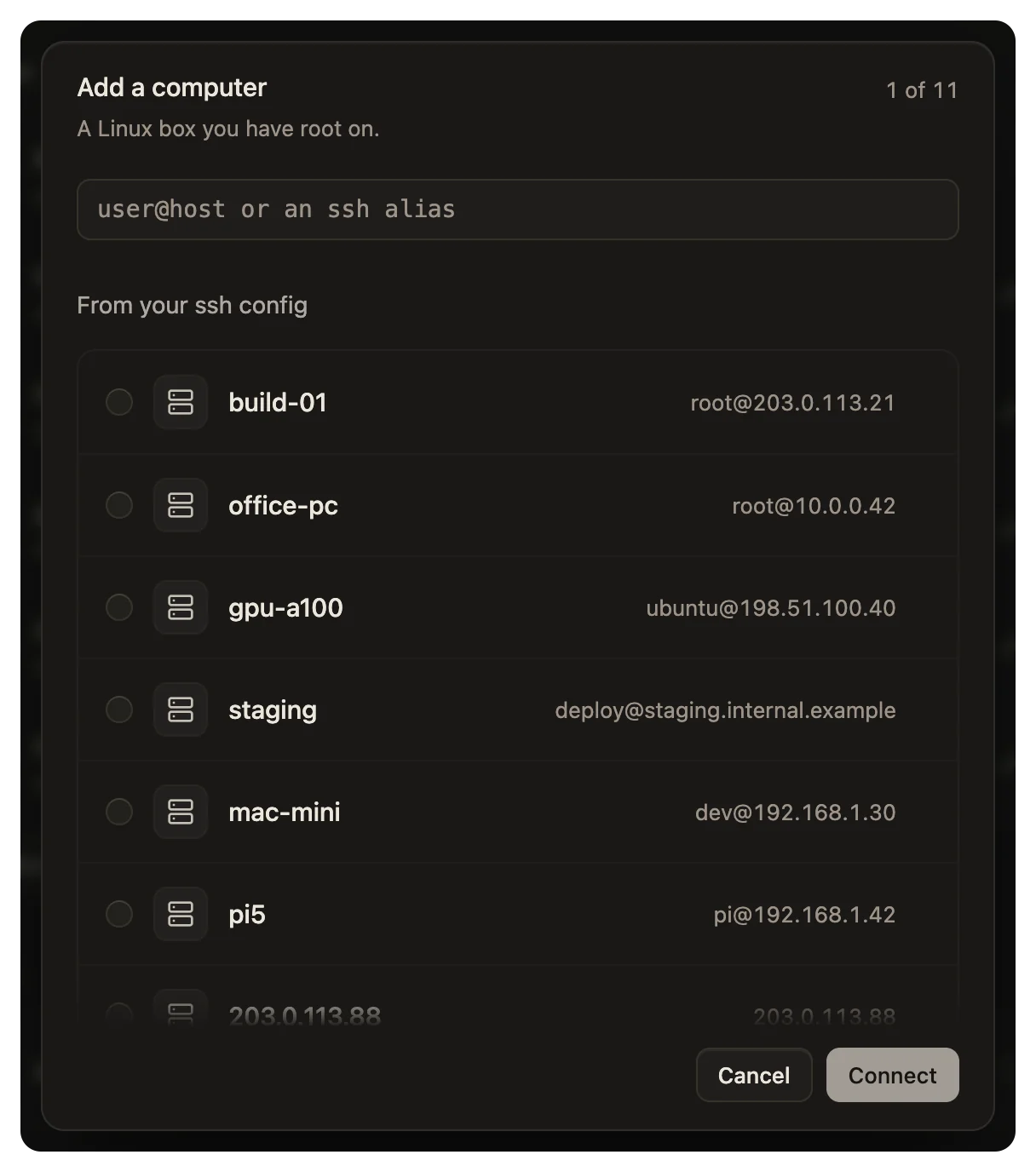
On the command line:
wsp add root@192.168.1.40 --name den
wsp shows the host key of the computer and asks you to trust it:
root@192.168.1.40 answers with the key ssh-ed25519 SHA256:...; trust it and continue?
Compare the fingerprint with the one from step 2. Answer yes only if they are the same. Without a terminal, give the key with --host-key 'SHA256:...'. If the computer answers with another key, run the ssh-keygen -R line that the refusal prints before you add it again.
The add installs the daemon. Then you choose what goes on the computer in the app's Add a computer, or you give a saved recipe with --recipe <name>. The add asks you to finish the sign-ins in your browser. A rented server shows each step, its output and how to save a recipe.
How the computer reaches yours
The daemon on the computer at home dials your host. When a computer has joined, the host opens a second port on every address of your computer, so a computer on your network can dial it directly. For the app's host, and a host that you start with wsp up, it is 20 above the app port. For the default app port 4400, that is 4420. A host that a wsp command starts by itself takes a free port at its first start and asks for the same port at every start after, so the computer at home keeps reaching it. The install's starting the agent row names the address that it dials.
If a firewall on your computer blocks that port, the host keeps an ssh connection to the computer at home open. The daemon dials back through it. The install then says dials back over ssh. The computer works the same way, but only while your computer is awake and on the network.
Add a project and start a thread
wsp add https://github.com/acme/api --on den
wsp projects
wsp run api "Read the README and run the tests."
The thread runs in the project's folder on the computer at home, as root, and it shows in your sidebar.
A computer at home runs one thread for each 2 GB of memory by default, at least one, and at most twice its cores. An old laptop with 8 GB runs four threads at once. To change it, run wsp computers set den --threads <n>.
Update and remove it
wsp add den --updateputs the host's daemon version on the computer.wsp remove dentakes wsp off the computer and leaves your project folders.
Next
- A box behind a firewall adds a computer that your computer cannot reach.
- Computers shows the computers in the app.