Computers
A computer is one of your own computers that wsp runs threads on. That is the computer the app runs on, and each Linux computer you added or joined. Settings > Computers lists them all.
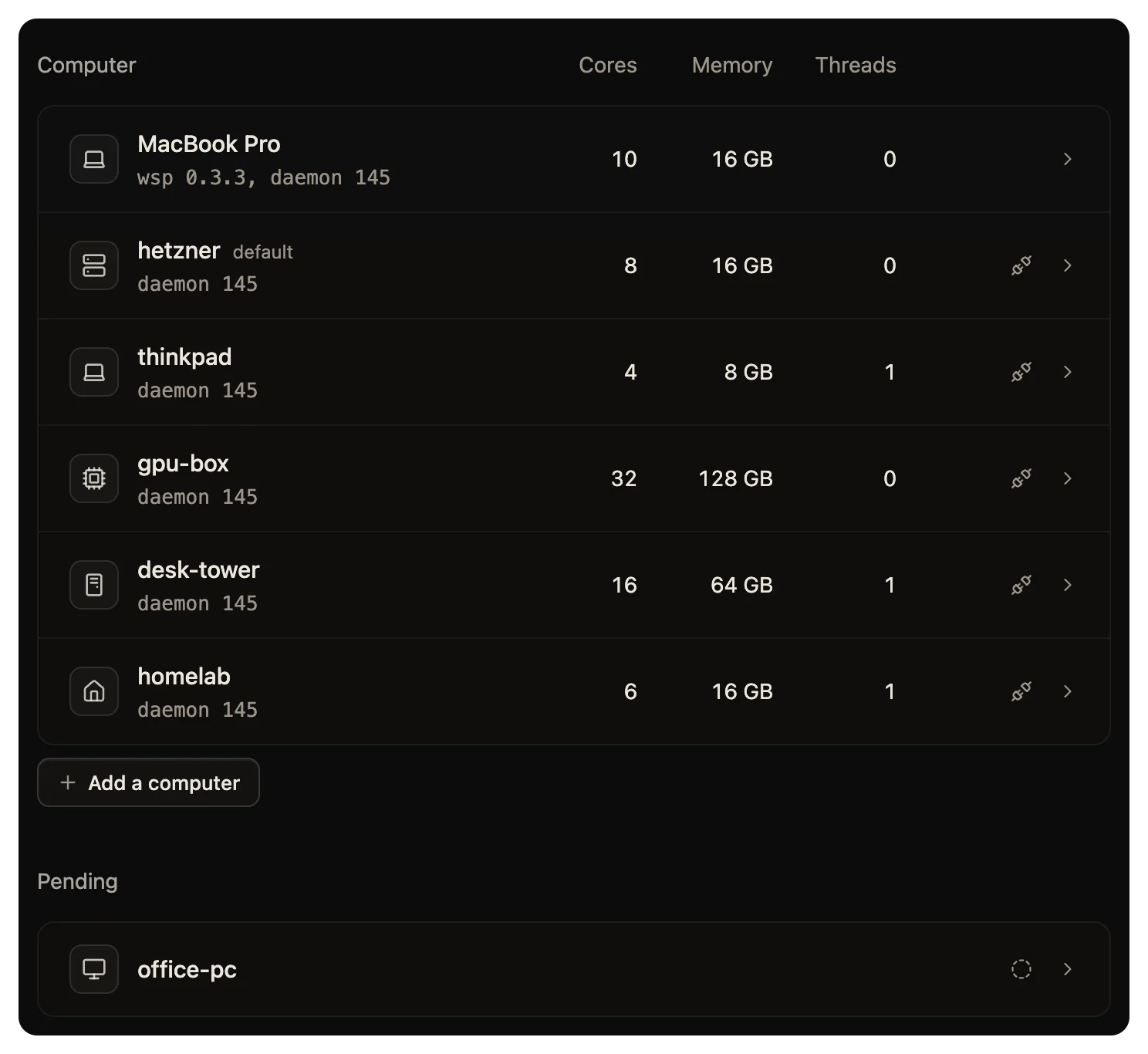
The list
Each row shows the computer's name, its cores, its memory, its threads and its state. The computer you added last carries the tag default. It is the computer a command means when it names none. A thread always starts on its project's computer, whatever the tag says. Below the list, Pending holds the adds you have not finished. Each says the step you reached.
| State | Meaning |
|---|---|
| Ready | The computer runs threads. |
| Setting up | Its setup runs now. |
| Needs you | A sign-in waits for you, or a project or the GitHub sign-in failed. |
| Setup failed | The setup stopped. The hover says why. |
| Behind | A change to its recipe is on its way. The hover names the changes. |
| No answer, or Stopped | The computer does not answer, or wsp on it stopped. |
| Blocked | It cannot run threads. The hover says why. |
In place of a state, a computer with an older wsp shows an Update button. A computer where an agent has no sign-in shows a Sign in button.
wsp computers reads its STATE column from the same rules, with a few differences:
Pendingmarks a computer that joined and waits for its picks.- A computer with an older wsp shows the two versions, such as
daemon 41, host 42, in place of a state. Fullmarks a computer that runs as many threads as it allows at once.
To add a computer, click Add a computer. See Add a computer, or Computers behind a firewall for a computer that dials out to you.
A computer's own page
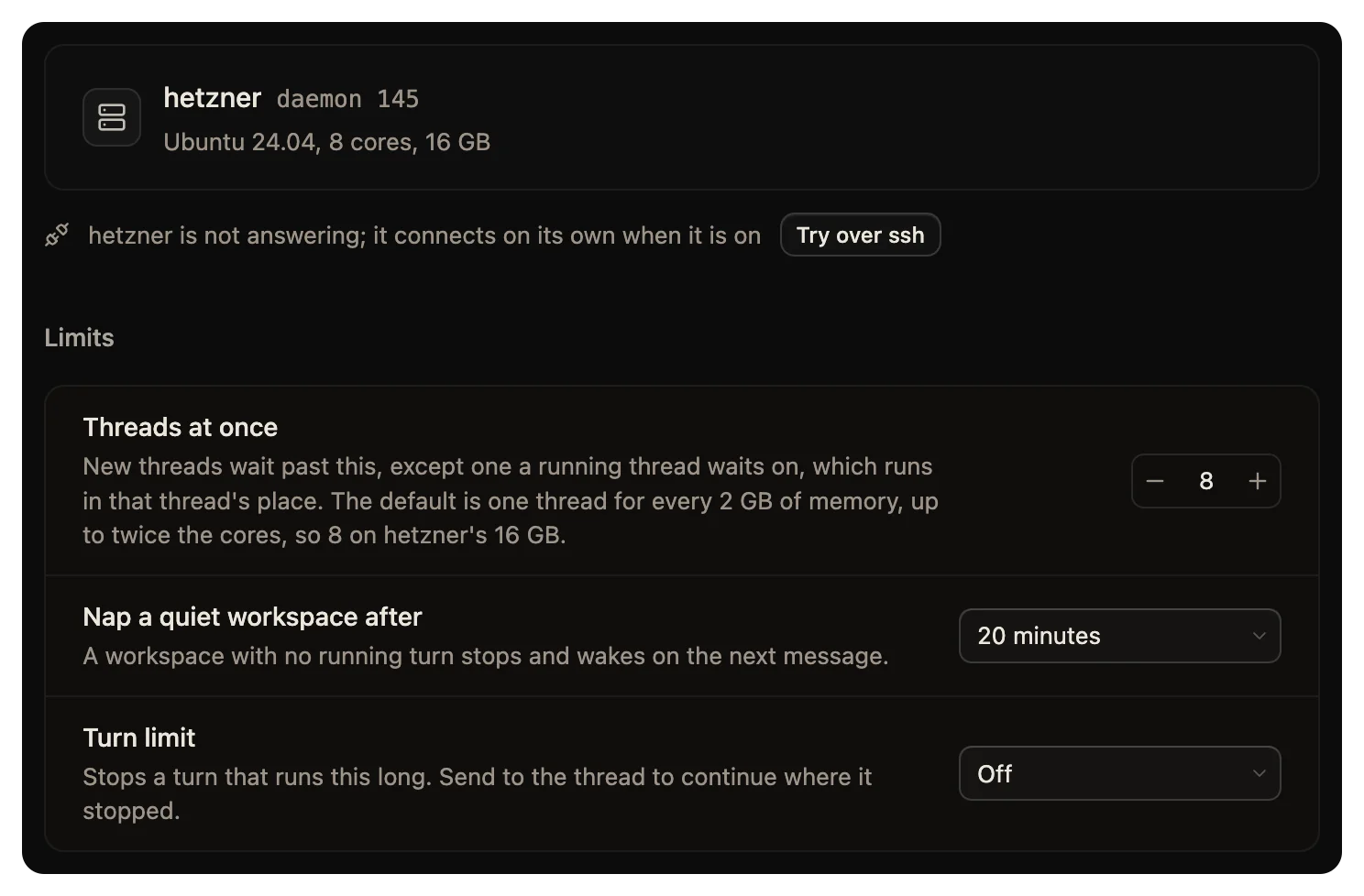
Click a row to open the computer's page. It shows the computer's version, its system, its cores and its memory, and then these parts.
Update
If the computer runs an older wsp than the host, the page says "Runs an older wsp than" the host's computer. Click Update wsp on the computer to install the host's version there. Running threads carry on.
Recipe
Follows a recipe names the recipe the computer follows, or None. A change to that recipe reaches the computer by itself. See Recipes.
Setup and sign-ins
Setup lists what the setup put on the computer, step by step. Sign-ins lists each agent's sign-in there, with Sign in for one that is missing.
Limits
| Setting | What it does | Default |
|---|---|---|
| Threads at once | How many threads run at the same time. New threads wait past this number. A thread that a running thread waits on runs in that thread's place. | One thread for every 2 GB of memory, at least 1 and at most twice the cores |
| Nap a quiet workspace after | A workspace with no running turn stops, and wakes on the next message. | 20 minutes |
| Turn limit | Stops a turn that runs this long. Send to the thread to continue where it stopped. Up to 24 hours. | Off |
When a computer runs as many threads as it allows, the next thread waits for a slot and starts by itself when one frees. Its transcript says, for example, "waiting while studio is running 4 of 4 threads", with a Raise threads at once button that opens this page.
When a turn reaches the turn limit, wsp stops it and says how long it ran. Send to the thread to continue.
Threads here
Agents may start agents lets a thread on this computer start threads of its own. Levels deep sets how far: 1 lets the thread you start open threads, and 2 lets those open their own. Both are on by default, at 2 levels. See Leads and sub-threads.
Name and ssh login
Click Change beside Name to rename the computer. Its projects and threads stay on it. You cannot rename the computer the app runs on.
Click Change beside SSH login to give wsp another login, as user@host. wsp saves it only after it checks that the login reaches the same computer. A computer that joined with a code has no ssh login.
Remove
Click Remove and confirm once. The computer's threads' records leave the host. Your files there stay. If a project on the computer holds work that no remote has, the dialog names it, and its button says Remove anyway.
For a computer you added over ssh, wsp logs in and takes off its service and its own files under the login's home. It also takes off the command that opens sign-in pages in your browser. Your work folder stays.
In two cases the wsp service stays on the computer and keeps running as root:
- The computer joined with a code. It has no ssh login, so the host can only ask it to delete wsp's files.
- The computer is offline, and for a computer you added over ssh, its login does not answer either. Before you confirm, the dialog says that nothing comes off a computer that joined with a code, and that wsp tries the login of one you added over ssh. The host says that the daemon is still installed, and forgets the computer. When the computer comes back, the host refuses its dial.
In both cases, run wsp leave as root on that computer. It takes the service and wsp's files off. See Computers behind a firewall.
From the command line
wsp computers lists your computers with their state, cores, memory and threads.
wsp computers set changes one computer:
wsp computers set studio --threads 6 --turn-limit 4
wsp computers set studio --name lab-box --ssh root@203.0.113.7
wsp computers set studio --recipe build-box
| Flag | What it sets |
|---|---|
--name <new> | The computer's name. |
--ssh <login> | Its ssh login. |
--threads <n> | Threads at once. |
--turn-limit <hours> or off | The turn limit. |
--nap <minutes> or off | The nap of a quiet workspace. |
--spawn on or off | Whether a thread there can start threads. |
--max-depth <n> | How many levels deep. |
--recipe <name> or none | The recipe it follows. With none, the computer keeps what it has. |
--reset <setting> | Puts a setting back to its default. |
wsp remove <computer> takes a computer out. It asks once. For a joined or offline computer, run wsp leave on that computer too. --force removes it even where work that no remote has is on it, and that work goes with it.
See wsp computers, wsp computers set and wsp remove for every flag.