Recipes
A recipe is a saved set of picks from Add a computer. It names the agents, MCP servers, CLIs, skills, plugins, projects and config that go on a computer. With a recipe, the next computer you add starts from the same picks. A computer that follows a recipe gets each later change to it by itself.
A recipe holds facts only, never a secret. It says how each agent and GitHub sign in, but it holds no key and no token. wsp refuses to save a recipe with a key named like a secret or a value shaped like a token.
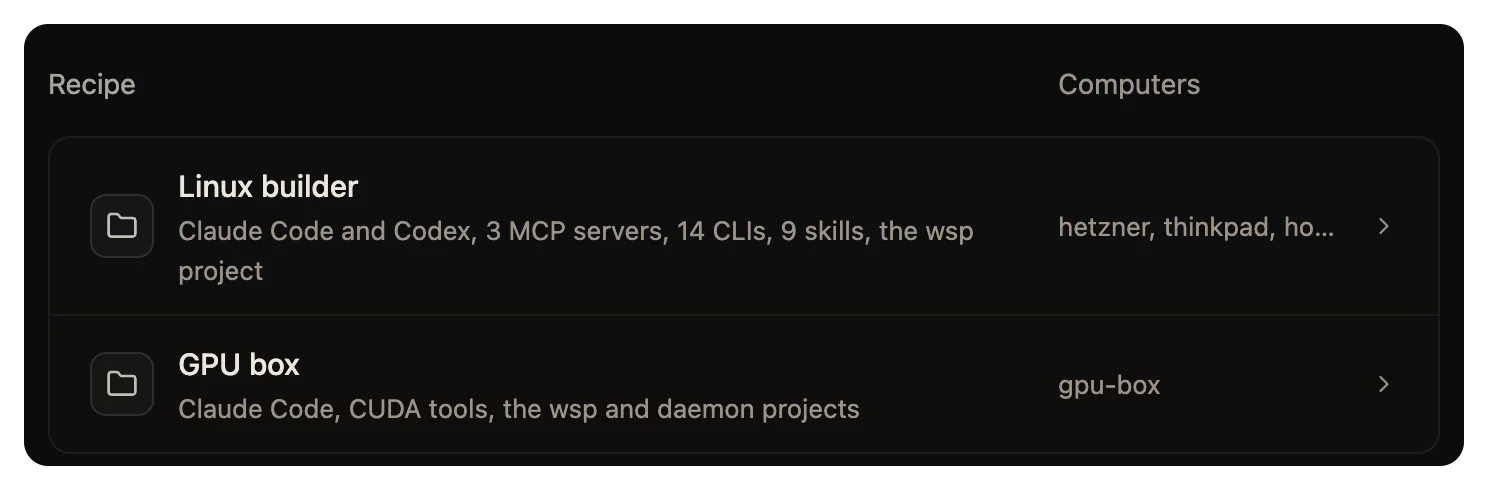
Save a recipe
On the last step of Add a computer, tick Save as a recipe, and give it a name and an icon. The computer you add then follows that recipe.
From a terminal, save the picks of a computer you already added:
wsp recipes save build-box --from studio
The computer follows the recipe from then on. A recipe that already has that name is replaced. You cannot save a recipe from the computer the app runs on, or from a computer set up before wsp kept its picks.
Use a recipe
When you have a saved recipe, Add a computer shows a Start from step after Checks. Pick the recipe, and every step starts with its picks ticked. You can still change any step. A pick at Start from only ticks the steps. The new computer follows the recipe only if you also tick Save as a recipe on Summary, or add the computer with wsp add ... --recipe.
From a terminal, add a computer with a recipe:
wsp add root@203.0.113.7 --recipe build-box
A computer you already added can follow a recipe too. Open the computer's page in Settings > Computers and pick the recipe under Follows a recipe. Or run:
wsp computers set studio --recipe build-box
--recipe none stops following. The computer keeps what it has.
Change a recipe
Open Settings > Recipes and click a recipe. Its page shows the computers that follow it and its ticked rows under Agents, MCP servers, CLIs and Skills. A change to a tick saves the recipe at once and reaches every computer that follows it.
A recipe also changes when the files it names change on the computer the app runs on. wsp watches those files: skills, configs, agents' files and the MCP servers.
When a recipe changes, each computer that follows it puts the change on soon after. Until then, the STATE column of wsp computers says Behind for it. To see the changes, run wsp computers --json and read the computer's sync field. Sometimes you take a row out of a recipe after you edited its file on the computer. Then the file stays there, and wsp stops managing it.
You can rename a recipe only while no computer follows it.
Delete a recipe
On the recipe's page, click Delete and confirm. Or run:
wsp recipes remove build-box
The computers that followed it keep what it put there, and follow no recipe from then on.
Where recipes are kept
Each recipe is a TOML file in ~/.wsp/recipes/, named after the recipe in lower case with a dash for each run of other characters.
From the command line
| Command | What it does |
|---|---|
wsp recipes | Lists your recipes: what each puts on a computer, in one line, and the computers that follow it. |
wsp recipes show <name> | Shows one recipe whole: each row by kind, the computers that follow it, and the hash it comes to on this computer now. |
wsp recipes save <name> --from <computer> | Saves what a computer was set up with as a recipe. The computer follows it from then on. |
wsp recipes remove <name> | Takes a recipe away. Add --yes to skip the question. |
See wsp recipes and the pages beside it for every flag.
wsp recipe and wsp recipe scan are different commands. They build the recipe of your image for wsp init, not a recipe for a computer.